Introduction
This document provides a brief tutorial for the SoftWright ASSET MANAGER program. The tutorial includes sample records to illustrate the functions in the program. All information is for illustration purposes only.
This Tutorial is designed to provide familiarity with the general operation of ASSET MANAGER. Additional, more detailed information is also available in the ASSET MANAGER Frequently Asked Questions (FAQs).
This tutorial covers information about ASSET MANAGER Report functions. Another tutorial is available with more information about data entry and other functions.
As you build up information in the ASSET MANAGER databases, you can use the Report functions to manipulate and view the data.
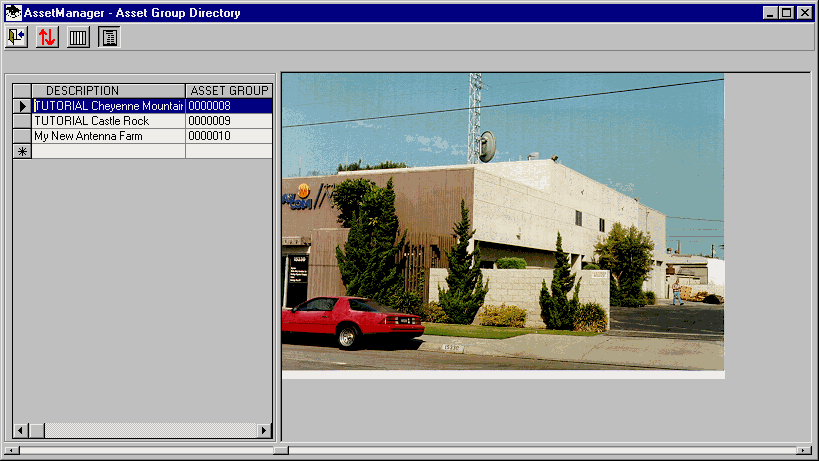
From the ASSET GROUP Directory form, click the Create Report button.
The Report Setup form is displayed:
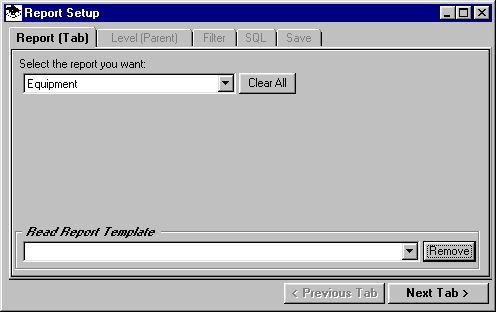
The first step is to select the database you want information about. Use the pulldown list on the Report tab to select Maintenance:
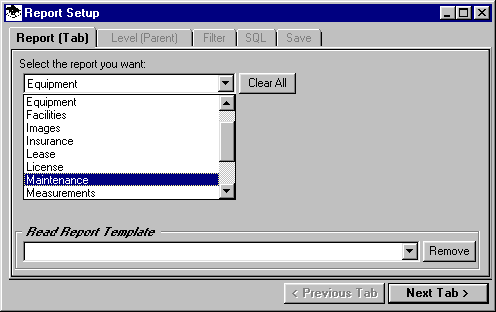
Click the Next Tab button at the lower right of the form. The Level tab is displayed.
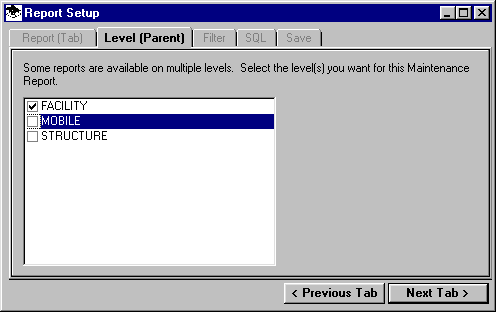
Since the Maintenance database (which we selected on the first tab) can be associated with several different higher levels (or Parents) you can choose which Parent(s) you want to search for this report. As a refresher, recall (near the beginning of this tutorial) the Detail information for the ASSET GROUP record initially displayed several tabs for different information associated with the ASSET GROUP.
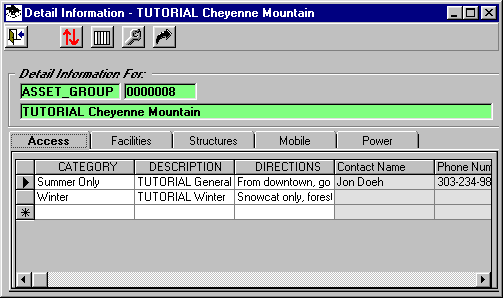
The Maintenance records were available to the Facilities, Structures, and Mobile records (visible when you double-clicked a Facility record for example, and the Detail for that facility were displayed). These "upper level" records of Facilities, Structures, and Mobile information are the possible "Parents" for the Maintenance records. Different databases will have different Parents, depending on the applicability of the data to the upper level information.
The Level (or Parent) tab on the Report Setup form enables you to select one, some, or all of the parents for the database report you are creating.
In this example, for the Maintenance database you selected, check only the Facility option, and un-check the others:
Click the Next Tab button at the lower right of the form.
The Filter tab is displayed.
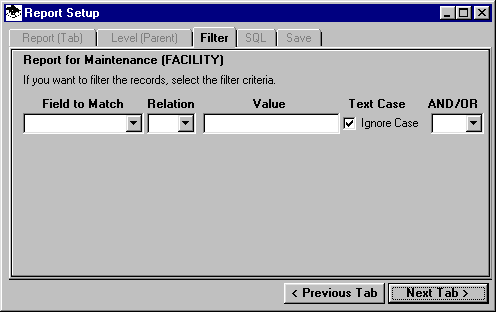
This tab enables you to specify one or more conditions (or "filters") to use in searching the database when creating this report.
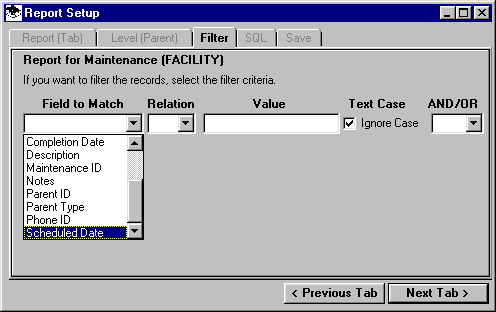
The first pull-down list on the row contains a list of the columns (or "Fields") available to test in the database selected for this report.
Since the Maintenance database was selected for this report, the columns from that database are available for use in the Filter. Select the Scheduled Date from the list:
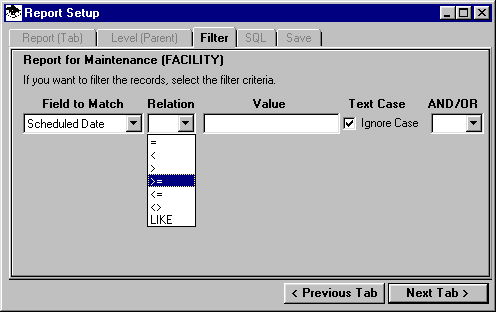
The next pull-down list for the filter is the "operator" you want to use. You can define a filter or test based on relationships such as equal ("="), greater than (">"), etc., to compare the selected field (in this case, the Scheduled Date), to a value you will define.
Suppose we want a list of Maintenance items with a Scheduled Date in February of 2002. Select the relational operator as greater than or equal to (">=") from the list:
The third box on the filter is the value you want to use in comparison with the records in the database. In this example, we want a date on or after February 1, 2002, so enter that into the box.
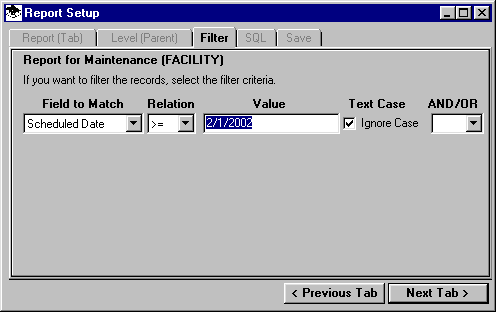
The "Ignore Case" option is only used if we are matching text strings, which will be discussed later.
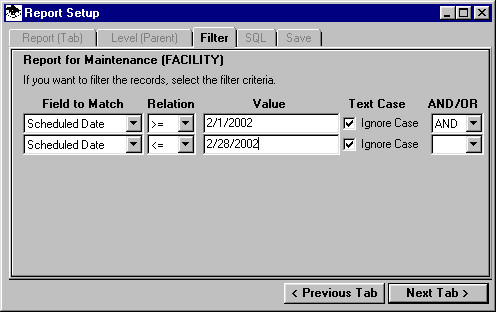
If the only criterion for this report was Scheduled Dates after February 1, 2002, the filter would be complete. However, to limit the report to dates during that month, a second condition will be needed. We want both conditions, that the date is on or after February 1, and on or before February 28.
The last box on the filter is the Boolean operator. Since we want both conditions to be met, select AND from the pull-down list:

When either AND or OR is selected as the Boolean operator, another row is displayed for the filter:
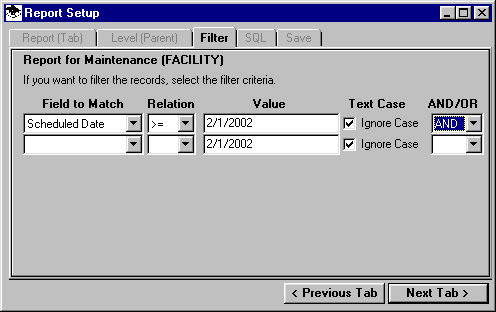
Complete this portion of the filter for dates on or before (less than or equal, "<=") February 28:
Click the Next Tab button at the lower right corner of the form.
The SQL (Structured Query Language) tab is displayed.
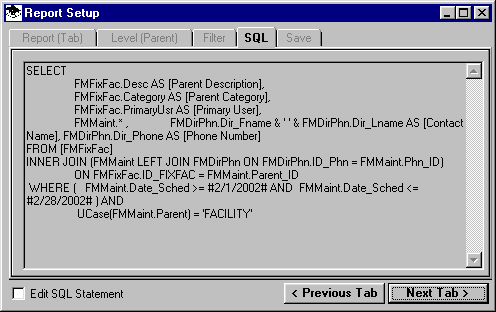
This tab displays the database query constructed from the selections and filter information. If you are familiar with SQL syntax and rules, you can check toe "Edit SQL Statement" box to enable editing of the SQL. Changes in the SQL statement that do not follow standard SQL practices may result in errors or unpredictable results in the report.
Click the Next Tab button.
The Save tab is displayed:
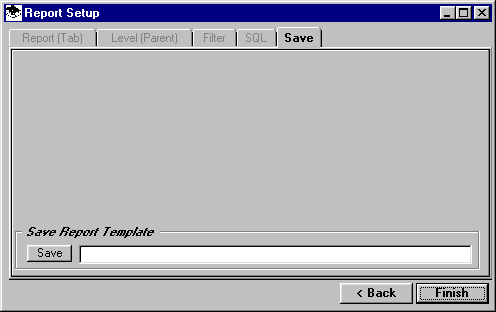
This tab enables you to save all of the specifications of the report (including the Filter information) for use later. For this example, leave the text box empty and click the Finish button.
The Report form is displayed with the results.
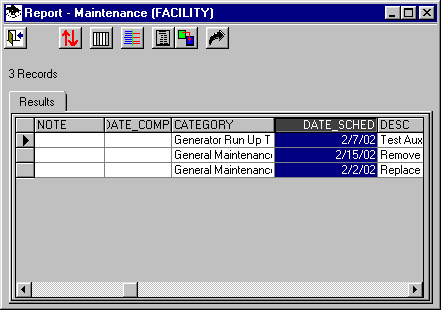
Note that none of the data on the Report form can be edited.
Reports – Matching Parent Fields
The ASSET MANAGER Report generator can also match information on the Parent records in the preparation of the report.
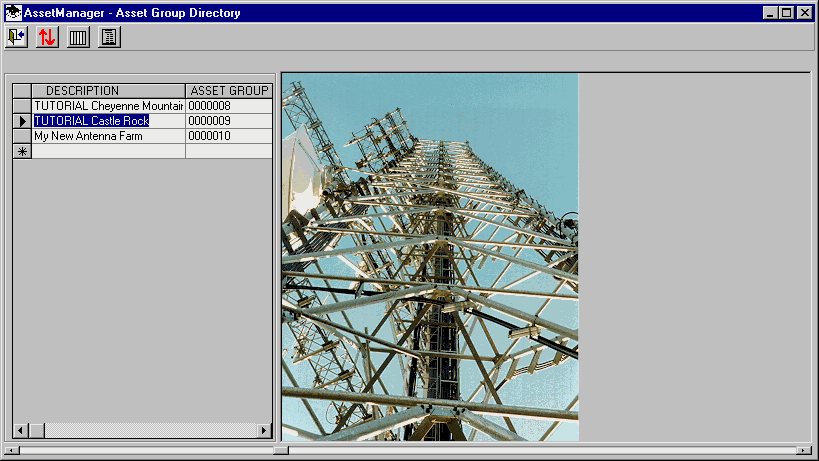
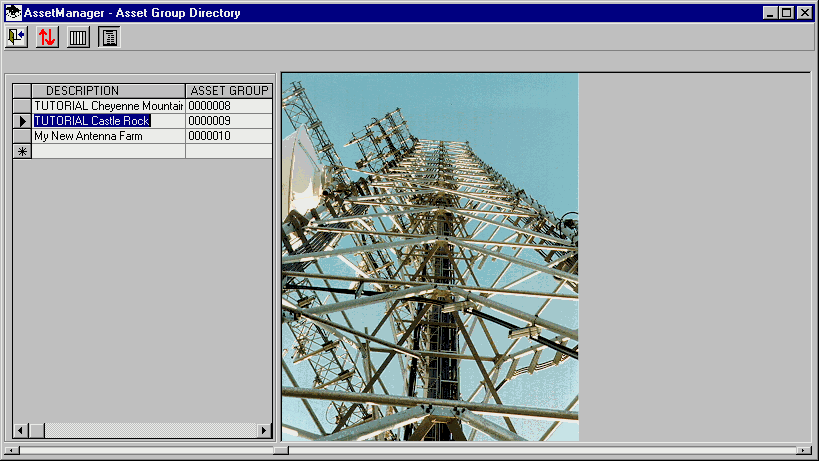
For example, from the ASSET GROUP Directory form, double-click on the Castle Rock ASSET GROUP.
When the Detail form is displayed for Castle Rock, select the Facilities tab.
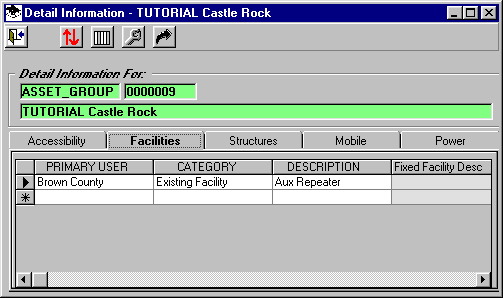
Using the last row of the grid (with the "*" in the left column), enter a new Facility record with Acorn County as the Primary User as shown:
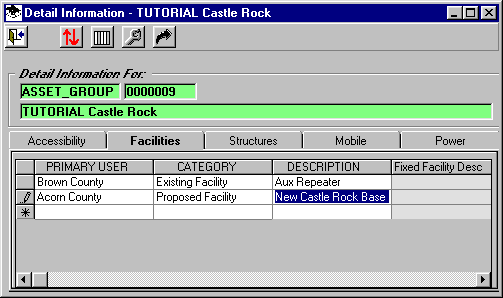
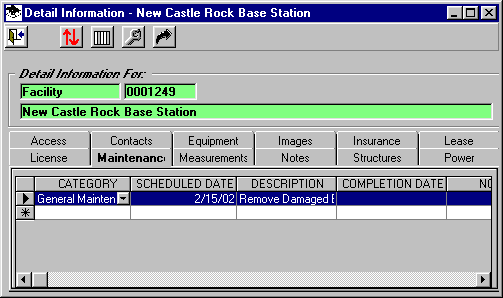
Double-click the Description column on the new record to open the Details for that Facility. Select the Maintenance tab and add a new record as shown:
Close the forms to return to the ASSET GROUP Directory form, and click the Report button:
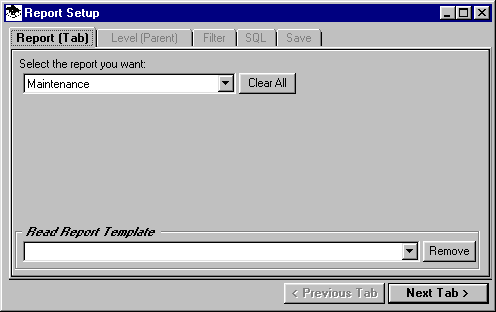
On the Report Setup form, select the Maintenance report:
On the Level tab, select only Facility:
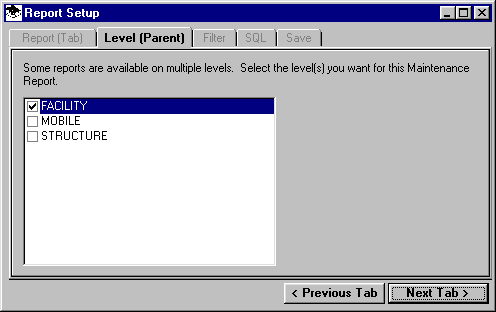
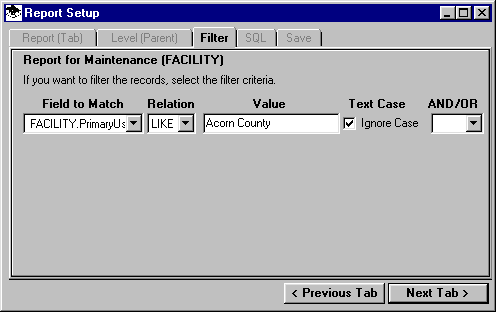
On the Filter tab, use the pull-down list to display the fields that can be matched.
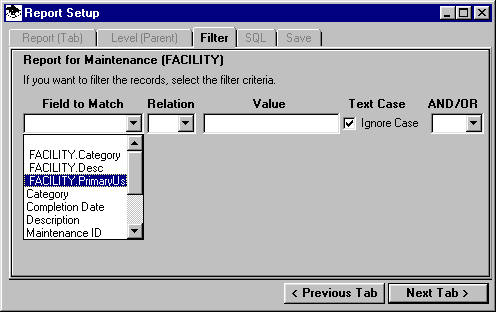
Notice that at the top of the list are certain fields from the Parent(s), in this case the Facility parent. Select the PrimaryUser field.
In the operator pull-down list, select "LIKE":
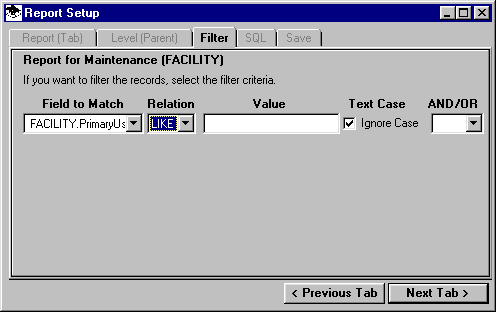
The LIKE operator permits the use of wildcard characters, providing more flexibility than the equal "=" operator.
If we want to find Maintenance records for Facilities that have Acorn County as the Primary User, we can type in the text to match. However, for Primary User fields, and for Category fields (since both have a pre-determined list of values already defined), double-click on the text box, and a list of the available values is displayed:
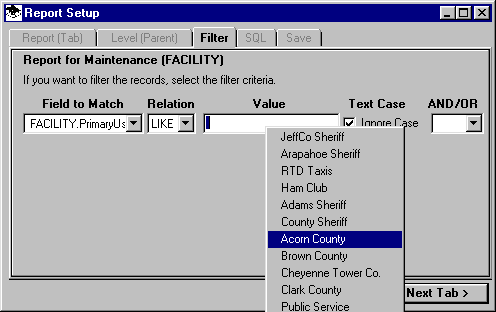
Select Acorn County, then click the Next Tab button.
Click the Next Tab button to move past the SQL tab.
Click the Finish button on the Save tab.
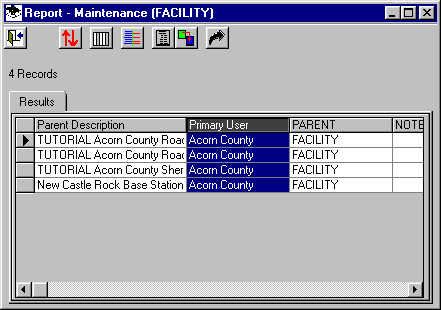
The Report is generated showing the Maintenance records for all Facilities with Acorn County as the Primary User, even though the records are for Facilities at different ASSET GROUPs.
A "Sub-Query" starts with the result of one Report, then creates another report by searching those preliminary results, rather then the complete database.
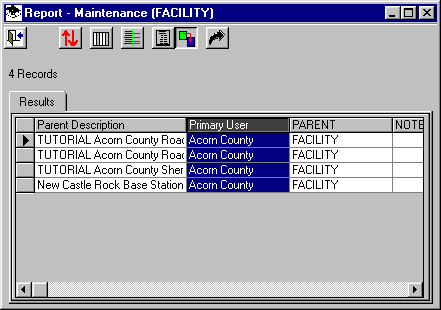
For example, suppose you want a report of the Access information for the Maintenance report created above. Starting with that Report, click the Sub-Query button on the toolbar:
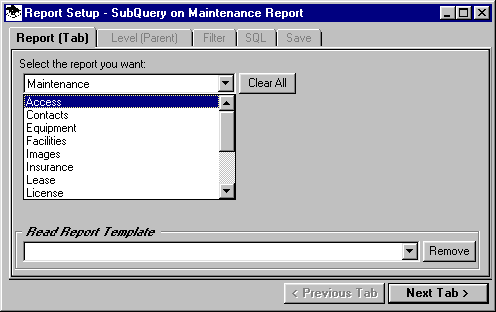
The Report Setup form is displayed. Select the Access report from the pull-down list:
Click the Next Tab button.
Since the Parent(s) have already been defined in the original report, they cannot be changed in this sub-query.
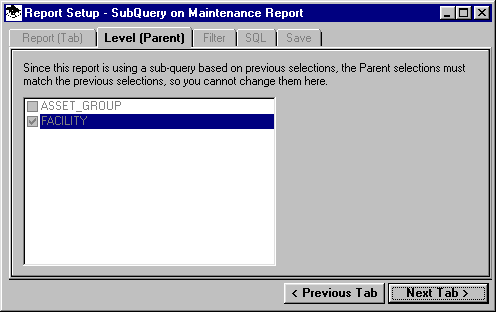
Click the Next Tab button.
Additional filters (based on the Access records) could be added here. For this example, we will not add any other filters:
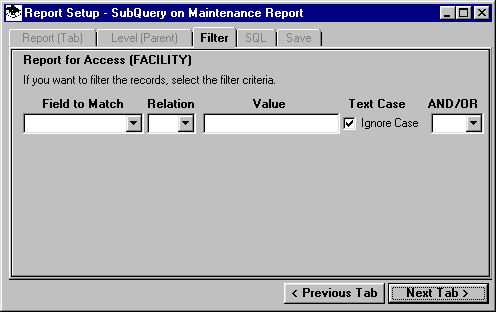
Click the Next Tab button.
Click the Next Tab button to pass the SQL tab.
Click the Finish button on the Save tab.
The Report form is displayed, showing the Access information for the Maintenance records related to Acorn County facilities:
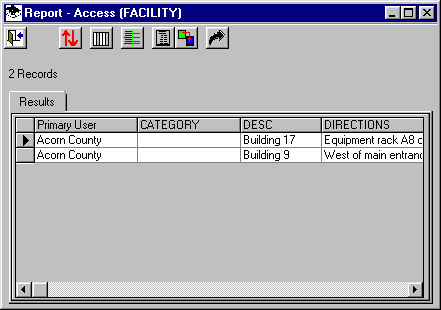


 |
Copyright 2002 by SoftWright LLC