SoftWright’s MGRS Prototype program uses the functions that are a part of SoftWright’s standard QuickPath and Terrain Analysis Package (TAP) programs for retrieving and displaying path profile information. The prototype adds two new features for evaluation and testing purposes.
After installation, the MGRS Prototype program is executed from the "PathSetup_MGRS.exe" file.
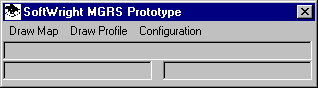
The Military Grid Reference System (MGRS) Prototype program displays a simple menu:
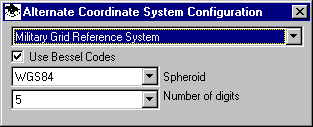
To set the coordinate system, select the Configuration menu and the Coordinate System item. Set the desired options for the MGRS coordinate transformation with latitude and longitude values.
To draw a profile by entering the coordinate values, select the "Draw Profile" option from the main menu.

You can enter either the latitude and longitude, or the MGRS value.
As an alternative, select the Draw Map menu option. The Map Window will be displayed.

Select the Open option to display a graphic map file. For example, you can select the default sample included with the prototype:

When you open the file the map will be displayed:
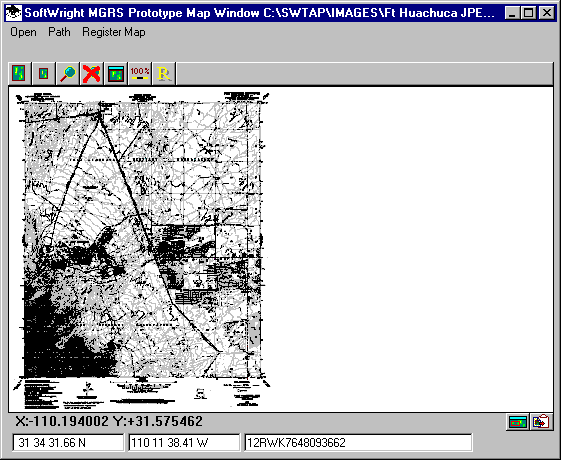
You can use the magnifying glass button to zoom into a particular area on the map.
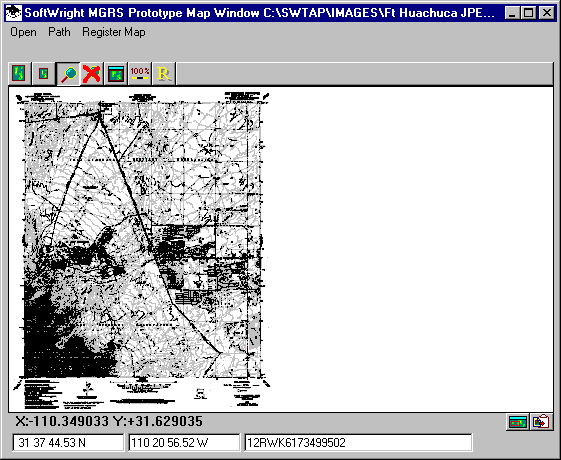
After clicking the magnifying glass you will be prompted to define a rectangle by clicking two points on the map.
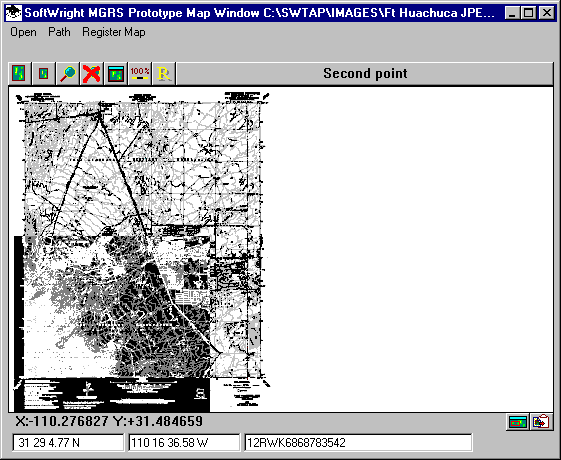
If you want to define a path by selecting points on the map, click the Path menu.
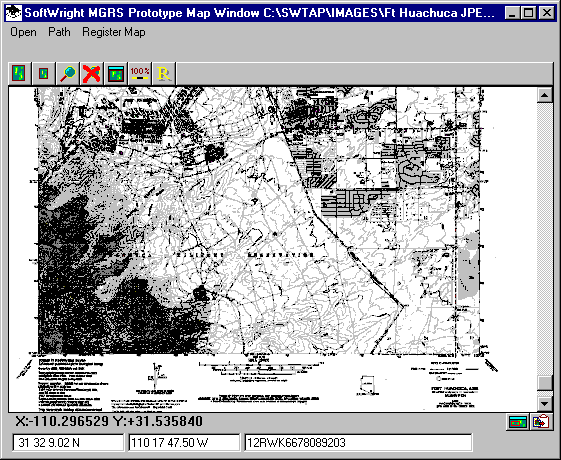
You will be prompted to click the starting and end points of the path. The latitude and longitude and the MGRS coordinate will be displayed at the bottom of the map.
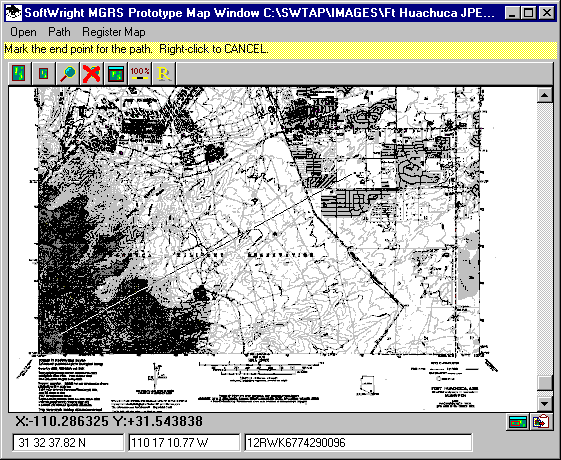
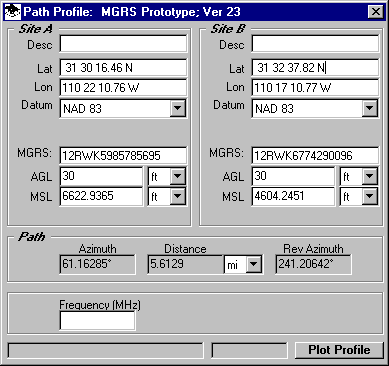
After clicking the second point to define the path the Path Profile form will be displayed.
When you click the Plot Profile button, the profile will be displayed:
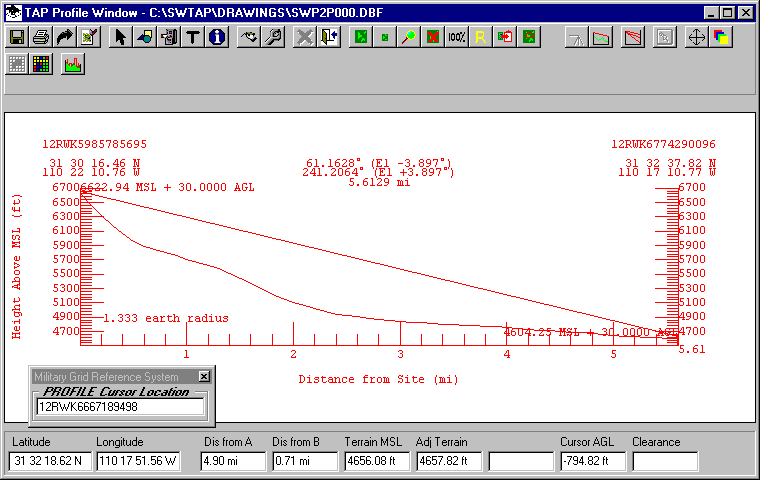
The latitude and longitude values are displayed as you move the cursor along the profile. The MGRS coordinates are displayed in an auxiliary window as shown. The MGRS coordinates for each end point are also displayed above the latitude and longitude values at each end of the path profile.
You can also open other graphic map files such as files downloaded from the Internet or scanned from paper maps. Note that the file must be orthogonal, that is, square on the page. When you open a new file you will be prompted to register the file. This is accomplished by selecting two points on the map (such as two opposite corners) and entering the latitude and longitude value for a point, then clicking the point when prompted. Doing this for two points, usually opposite corners, defines the correlation between the pixels in the graphic file and latitude and longitude values. The map registration information can be modified with the Register Map menu.